
AI Safety Guardrails, Discount Ceilings & Human Escalation
Protect profit margins and brand integrity with strict discount ceilings, sentiment-based escalation, and prohibited topic guardrails.
- Set maximum allowable discount ceilings to prevent AI bargaining from eroding store margins.
- Configure automated human escalation triggers based on customer sentiment and frustration keywords.
- Establish banned topics and brand protection rules to prevent competitors from probing internal data.
- Audit escalated conversations in the dedicated 'Needs You' queue.
Before configuring this feature, confirm that your store meets the following requirements:
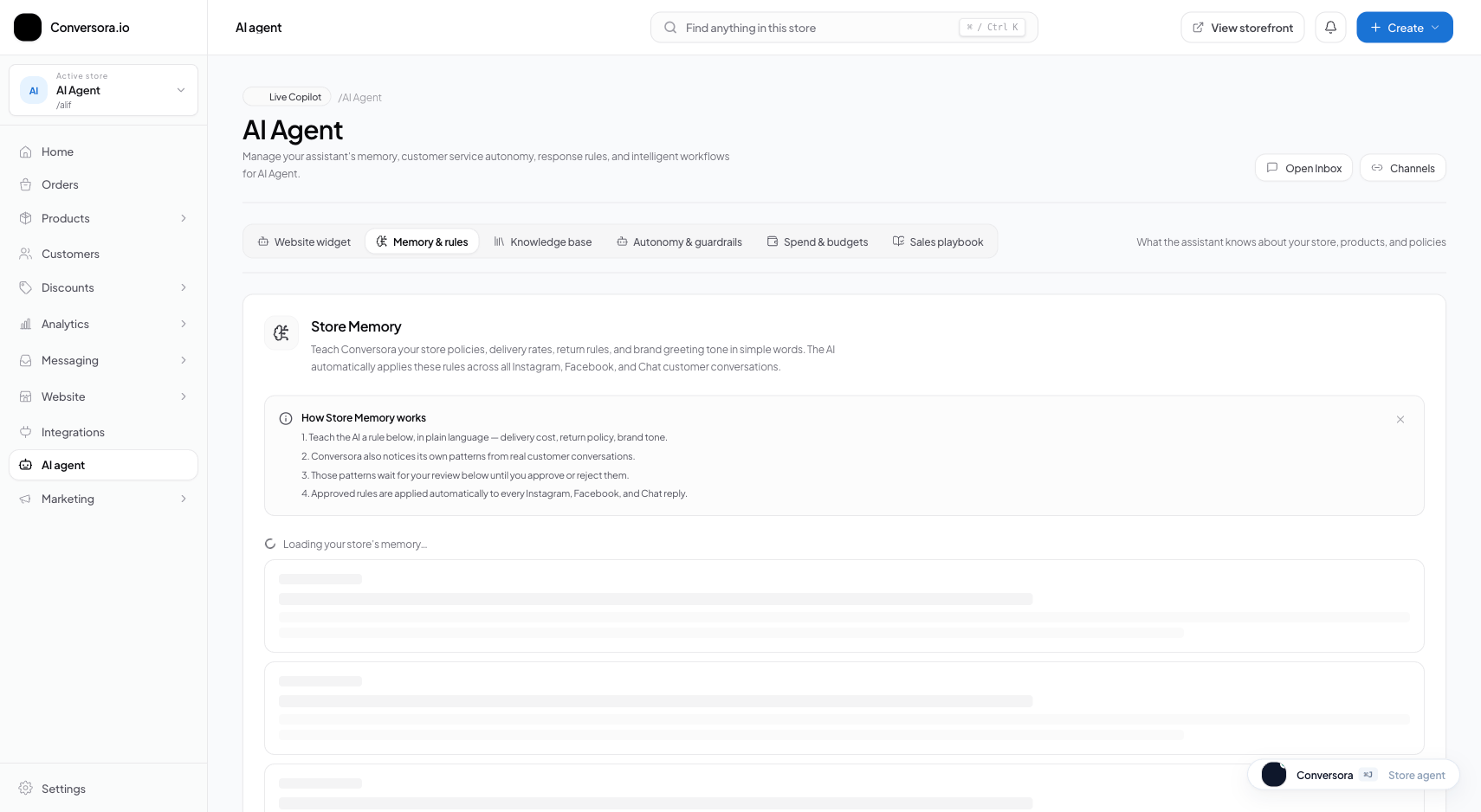
Interface view for this workflow.
1. Configuring Discount Ceilings & Negotiation Limits
If your store supports discounts, set clear limits and confirm each offer is authorized. Do not assume the assistant can create or apply a discount unless that action is available in the current settings and has been tested.
Open Guardrails Workspace
From the admin menu, select 'AI assistant' and navigate to 'Guardrails & Safety'.
Set Maximum Discount Ceiling
Enter your maximum discount percentage (e.g., 10%) or toggle bargaining completely off.
Save Guardrail Configuration
Save the rule, then test it on each connected channel where the setting is available.
2. Setting Human Escalation Rules & Sentiment Alerts
Even the best AI cannot resolve every edge case. When a customer has a damaged parcel, an exchange dispute, or demands to speak with a human manager, the conversation should be transitioned gracefully.
When an escalation triggers, Aura sends a polite, reassuring message (e.g. 'I’ve flagged this for our senior support team. A team member will reply shortly!') and moves the thread to your 'Needs You' queue.
Review Trigger Keywords
In the Escalation Rules tab, review and customize the trigger keywords that prompt human takeover.
Enable High Frustration Handoff
Turn on 'Automatic Sentiment Escalation' to detect agitated language automatically.
Practical Business Scenarios
How leading merchants implement this functionality in daily operations:
Troubleshooting & Common Issues
Diagnose and resolve frequent failure points quickly:
Frequently Asked Questions
Does the AI notify me when a conversation is escalated?
Yes. Escalations trigger browser push notifications and sound chimes if your admin console is open, and can optionally send immediate alerts to your connected Telegram or WhatsApp staff number.