
Team Management, Staff Roles & RBAC User Permissions
Invite staff members, assign 5-tier role-based access control (Owner, Admin, Manager, Staff, Member), configure Clerk organization RBAC, and manage member permissions.
- Delegate daily operations (chat replies, packaging, catalog edits) without sharing master owner credentials.
- Assign 5 granular role tiers: Owner, Admin, Manager, Staff, and Member / Moderator.
- Enforce strict multi-tenant boundaries via tenantDb and Clerk organization JWT verification.
- Change or remove a teammate's access, then confirm the change has taken effect.
Before configuring this feature, confirm that your store meets the following requirements:
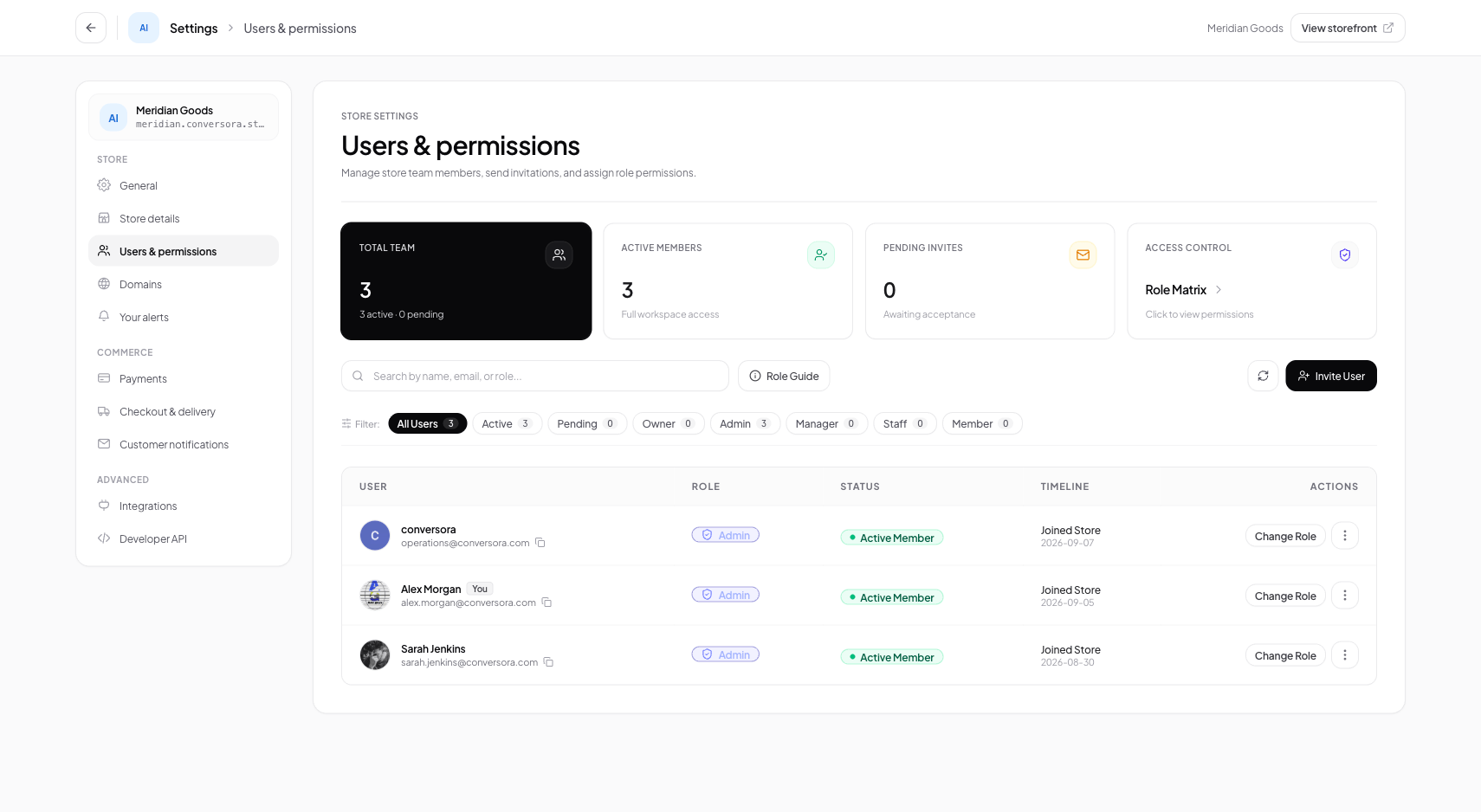
Users & permissions hub displaying active members, pending invitations, and granular role controls.
1. Understanding the 5-Tier Role Hierarchy
Conversora provides 5 distinct operational role levels designed to fit standard retail organizational structures:
- Owner (org:owner): Complete apex control over the store, organization billing, plan upgrades, and ownership transfers.
- Admin (org:admin): Full operational authority over products, orders, settings, custom domains, payment gateways, and staff invitations. Cannot transfer store ownership.
- Manager (org:manager): Oversees daily business operations, catalog publishing, marketing discounts, customer service, and performance analytics. Cannot alter gateway credentials or invite admins.
- Staff (org:staff): Dedicated operational role for packaging and warehouse fulfillment teams. Can view and update order delivery statuses, pack parcels, and print invoices.
- Member / Moderator (org:member): Read-only view of products, customer chats, and order queues. Ideal for junior trainees or external auditors.
2. Inviting a New Team Member
You can invite a teammate from the team settings. The invitation must be accepted before they can use the store.
Open Users & Permissions
Navigate to Settings in the sidebar and select 'Users & permissions'.
Click Invite User
Click the 'Invite User' button in the upper-right corner of the workspace.
Specify Email & Role
Input the colleague's email address and select their appropriate role tier.
Send Invitation
Click 'Send Invitation'. The recipient receives an immediate email invite, and their status appears under 'Pending Invites'.
Always follow the Principle of Least Privilege: assign the lowest role tier necessary for a teammate to complete their daily job.
3. Changing Roles and Revoking Access
You can change a teammate's role from the team settings if your account has permission. After changing or removing access, check the result and follow your organization's process for active sessions and connected services.
Locate Teammate in Directory
Find the member in the Users table or use the search bar to locate them by name or email.
Change Role or Remove
Click 'Change Role' to adjust their role tier, or click the action menu (...) and select 'Remove User'.
Confirm Action
Confirm the dialog, then check the member's role in the team list.
Practical Business Scenarios
How leading merchants implement this functionality in daily operations:
Troubleshooting & Common Issues
Diagnose and resolve frequent failure points quickly:
Frequently Asked Questions
Can team members see each other's personal passwords?
Team members sign in through the configured authentication provider. Check your account settings for the available sign-in and security options.
What happens when a team member is removed from the store?
After removing a teammate, verify their access is revoked and follow your organization's process for active sessions and connected credentials.