Analytics, Live View & Strategy LabEssentialBeginner

Exporting Financial, Inventory & Sales Reports (PDF / CSV)

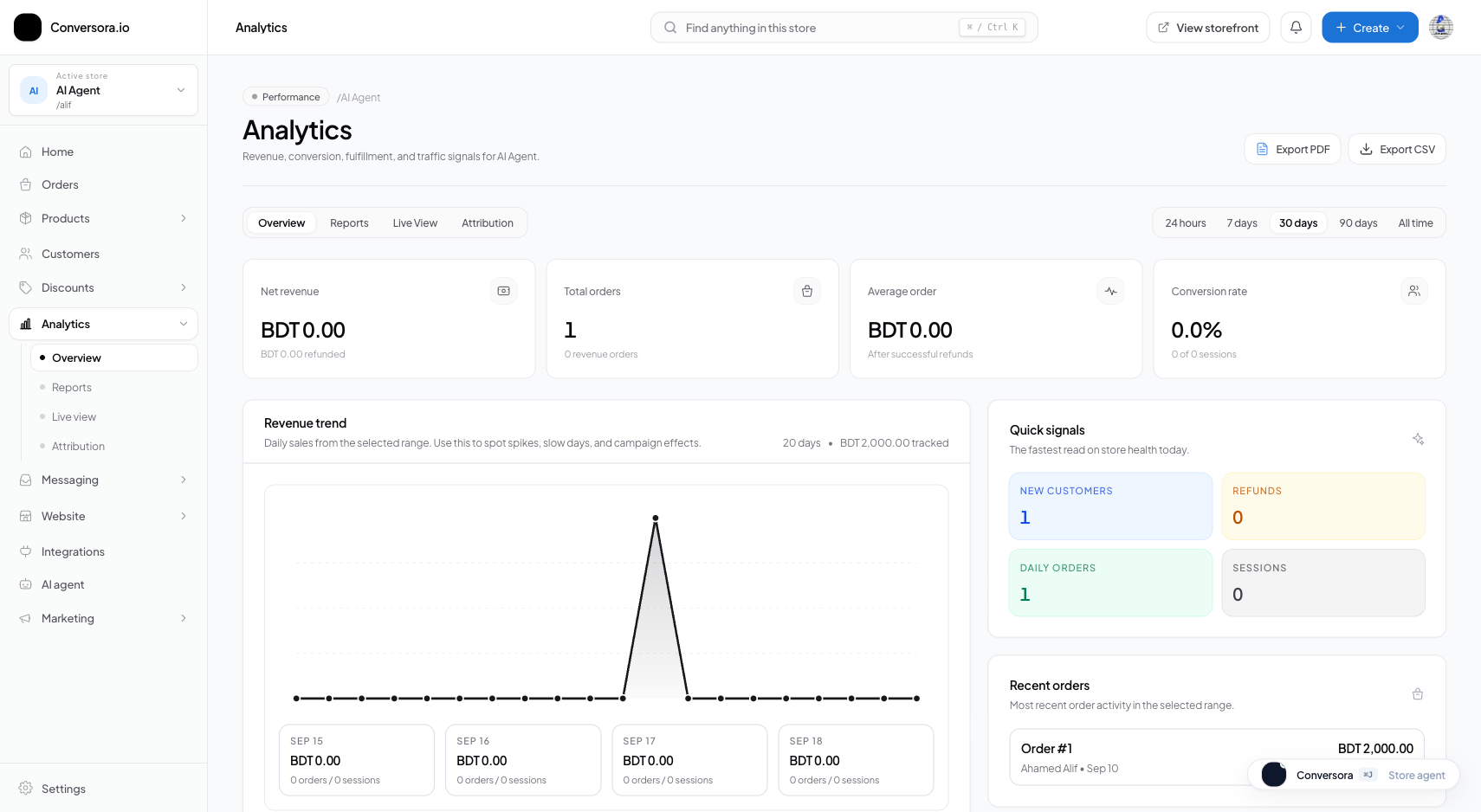
Export itemized sales spreadsheets, inventory audits, and branded PDF executive financial summaries for accounting and business reviews.

5 min readUpdated 2026-09-18
In This Guide
  • Export itemized order transaction spreadsheets in CSV format compatible with Microsoft Excel and Google Sheets.
  • Download executive PDF sales summaries with visual revenue graphs and tax calculations.
  • Generate inventory valuation reports showing on-hand stock quantities and inventory asset value.
  • Filter exports by date range, payment gateway (Stripe vs COD), and fulfillment status.

What This Functionality Does

The Reports and Exports workspace allows you to generate structured data files and financial reports for your accounting team, business partners, or tax filing requirements.

You can export: - Itemized Order CSV: Every transaction, customer name, delivery address, purchased SKUs, payment method, courier tracking ID, and tax breakdown. - Executive PDF Financial Summary: A formatted multi-page report containing total revenue, order count, courier COD collection figures, and average order value. - Inventory Valuation CSV: Current stock levels for every variant multiplied by retail price to calculate total inventory asset value.

How It Works Behind the Scenes

Report generation executes through memory-optimized database streaming:

  1. 1Query Streaming: When you request an export spanning thousands of orders, Conversora streams database rows in memory without loading the entire dataset into memory simultaneously.
  2. 2CSV Serialization: Data fields are escaped according to RFC 4180 standards, ensuring special characters, commas, and multi-line addresses parse cleanly into Excel.
  3. 3Streaming File Download: The generated file streams directly to your browser with appropriate Content-Disposition headers, completing downloads in seconds.
Prerequisites

Before configuring this feature, confirm that your store meets the following requirements:
Store Administrator Privileges:Must be signed in with Admin role to access financial export tools.

1. Exporting Itemized Order Spreadsheets (CSV)

CSV exports are ideal for deep financial analysis, bookkeeping, or importing into external accounting software like QuickBooks, Xero, or Tally.

1

Navigate to Reports

From the admin menu, select 'Analytics' and click 'Reports'.

Path:Admin Sidebar → Analytics → Reports
2

Select Report Type & Date Range

Choose 'Orders & Transactions' and select your date range (e.g. Last Month).

Path:Reports Workspace → Export Filter Drawer
3

Click 'Download CSV'

Click the blue 'Export CSV' button. The spreadsheet file downloads immediately.

Path:Reports Workspace → Export CSV

Practical Business Scenarios

How leading merchants implement this functionality in daily operations:

Monthly Tax & Courier Reconciliation
Situation: At the end of the month, an accountant needs to reconcile COD cash payouts from Steadfast Courier against completed orders.
Best practice: Export an Orders CSV for the previous month, filter by Payment Method 'Cash on Delivery', and compare courier consignment IDs against courier settlement statements.

Troubleshooting & Common Issues

Diagnose and resolve frequent failure points quickly:

Problem: Bengali or regional customer names appear garbled when opening CSV in older Excel
Why this occurs: Older versions of Microsoft Excel open CSV files using ASCII encoding instead of UTF-8 by default.
Resolution: In Excel, open via Data > From Text/CSV and select 'UTF-8' encoding, or open the CSV directly in Google Sheets.

Frequently Asked Questions

Is there a limit on how many orders I can export in one CSV file?

Conversora supports exporting up to 50,000 orders in a single file via streaming.