
Visual No-Code Storefront Builder: Customizing Your Website
Build and edit your storefront with the visual page editor, then review the changes before publishing.
- Customize hero banners, product grids, promotional carousels, and customer review sections without writing code.
- Rearrange sections on your homepage using intuitive drag-and-drop controls.
- Switch between desktop, tablet, and mobile preview viewports in real time.
- Publish changes and check the live storefront to confirm they are visible.
Before configuring this feature, confirm that your store meets the following requirements:
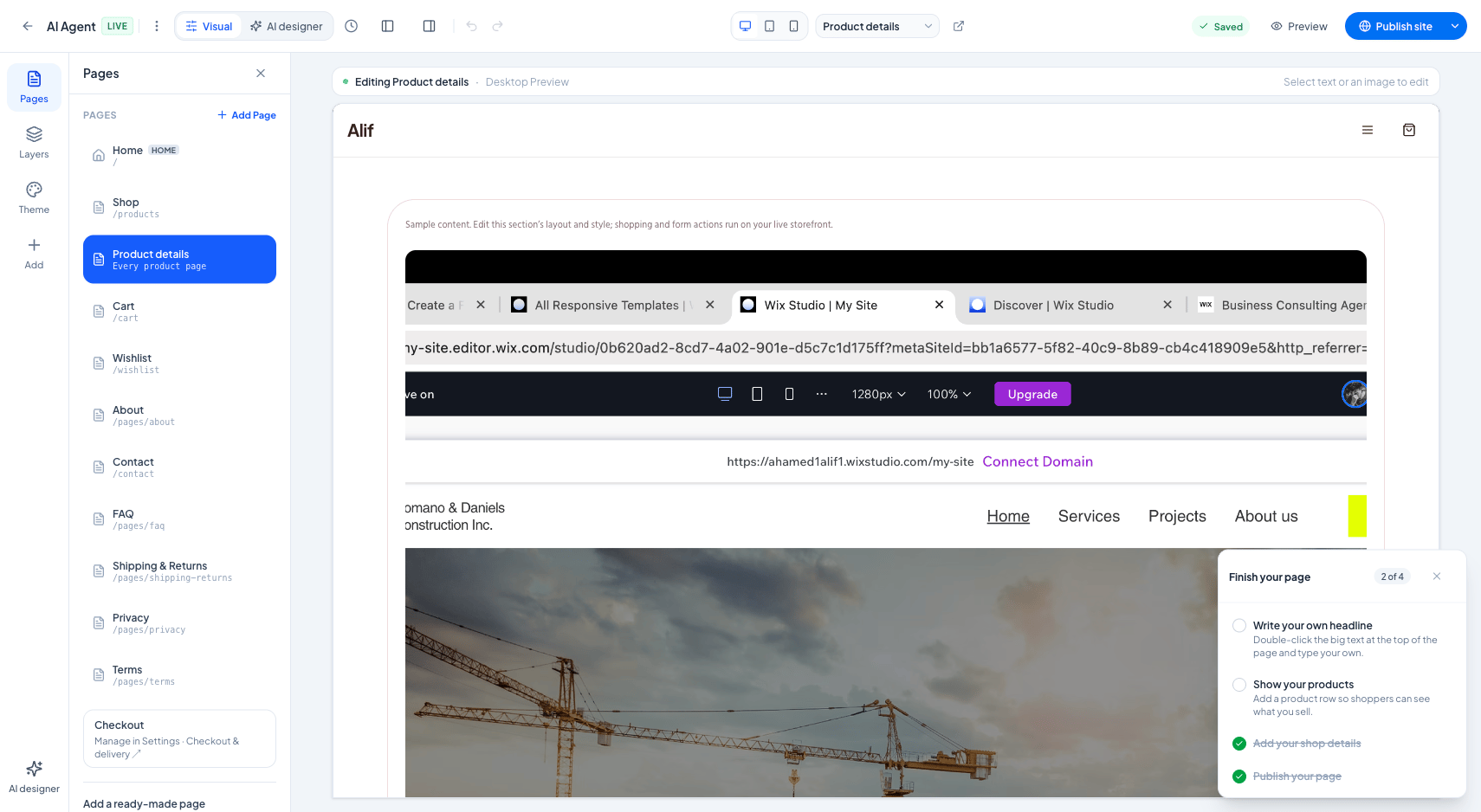
Interface view for this workflow.
1. Adding & Reordering Storefront Sections
Your homepage is constructed from modular sections. You can add new sections, hide sections temporarily during off-seasons, and drag sections up or down to adjust your page layout.
To maximize sales conversion, place your most compelling promotional offer or best-selling product collection near the top of the page, directly beneath your main hero banner.
Open Visual Editor
From the admin menu, navigate to 'Website Builder' and click 'Visual Editor'.
Add a Section
Click '+ Add Section' in the left sidebar and choose from the block library (e.g., 'Featured Collection Grid').
Drag to Reorder
Click and hold the drag handle next to any section in the sidebar to move it up or down in the page order.
Publish Changes
Select 'Save & Publish', then open the live storefront to confirm the changes are visible.
Practical Business Scenarios
How leading merchants implement this functionality in daily operations:
Troubleshooting & Common Issues
Diagnose and resolve frequent failure points quickly:
Frequently Asked Questions
Does changing my homepage layout cause downtime for visitors?
Changes may remain in draft until you publish. After publishing, open the live storefront and check the result. Publishing time and availability depend on the deployment and cache state.