Notifications & Merchant AlertsEssentialIntermediate

Customer Notification Templates: SMS, WhatsApp & Email Alerts

Automate transactional customer alerts for order confirmations, fulfillment dispatches, tracking links, and delivery notices across SMS, WhatsApp, and email.

5 min readUpdated 2026-09-18
In This Guide
  • Configure automated customer notifications across SMS, WhatsApp, and transactional email.
  • Customize message templates with dynamic merge variables ({{orderNumber}}, {{customerName}}, {{trackingUrl}}).
  • Connect regional SMS gateways or WhatsApp Cloud API for sub-second delivery.
  • Send live test messages to your personal phone to verify template formatting.

What This Functionality Does

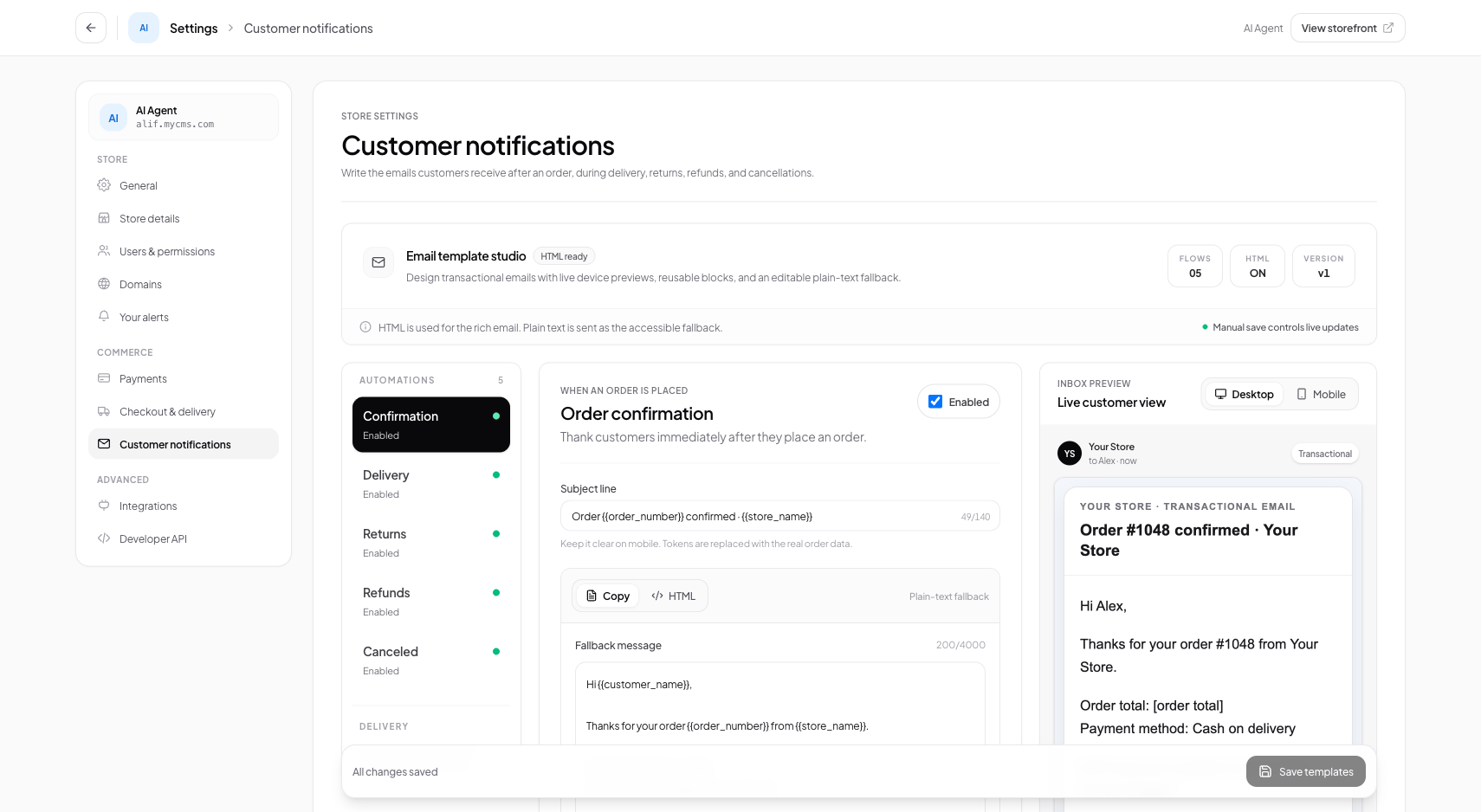
The Customer Notifications workspace manages the automated transactional communications your shoppers receive throughout their purchase journey.

Keeping customers informed reduces 'Where is my order?' inquiries and builds brand confidence: - Order Confirmation: Sent immediately when an order is placed, summarizing items, total price, and payment method. - Shipment Dispatched: Sent when warehouse staff book courier fulfillment, providing the courier name and clickable live tracking link. - Out for Delivery: Sent on the morning of delivery to ensure the customer has cash ready for COD. - Delivery Completed: Sent upon courier delivery confirmation with a link to leave a product review.

How It Works Behind the Scenes

Conversora triggers notifications through an event-driven edge pipeline:

  1. 1Lifecycle Event Trigger: When an order status updates, the backend emits an internal event (e.g. order.shipped).
  2. 2Template Merge Engine: The notification worker loads the active template for that event and interpolates dynamic variables (customer name, items, tracking URL, store contact).
  3. 3Queue Dispatch: The rendered message is pushed onto conversora-notification-queue to prevent blocking the web worker.
  4. 4Channel API Delivery: The queue consumer sends the message via your configured SMS gateway (e.g. Twilio, Greenweb, SSL Wireless) or WhatsApp Business Cloud API.
Prerequisites

Before configuring this feature, confirm that your store meets the following requirements:
SMS Gateway or WhatsApp Credentials:API credentials for an SMS provider or WhatsApp Business Cloud API (optional for email notifications).

1. Customizing Notification Message Templates

You can customize the wording of each notification to reflect your brand's voice.

Use dynamic merge tags such as {{customerName}}, {{orderNumber}}, and {{trackingUrl}}. Conversora replaces these placeholders with live customer data upon dispatch.

1

Open Notification Settings

From the admin menu, select 'Settings' and click 'Customer Notifications'.

Path:Admin Sidebar → Settings → Customer Notifications
2

Select Event Template

Click on 'Order Shipped' to open the template editor.

Path:Notification Templates List → Order Shipped
3

Edit Message Copy

Customize the message text and ensure {{trackingUrl}} is included.

Path:Template Editor → Message Body → Save

Practical Business Scenarios

How leading merchants implement this functionality in daily operations:

Cash on Delivery Preparedness Reminder
Situation: Customers frequently tell courier delivery drivers they don't have cash on hand when the package arrives.
Best practice: Enable the 'Out for Delivery' SMS alert. The message reminds the customer of the exact cash amount needed for the driver, cutting delivery failures by 40%.

Troubleshooting & Common Issues

Diagnose and resolve frequent failure points quickly:

Problem: SMS messages fail to deliver to customers
Why this occurs: SMS gateway balance is depleted or sender ID is unapproved by regional telecom authorities.
Resolution: Check your SMS gateway account dashboard, top up credits, and verify your alphanumeric Sender ID is registered.

Frequently Asked Questions

Can I send notifications in Bengali or other local languages?

Yes. Notification templates fully support Unicode characters for Bengali, Arabic, and other regional scripts.