Getting StartedPopularIntermediate

Multi-Tenant Store Management & Instant Store Switching

Learn how Conversora's multi-tenant architecture enables you to create, manage, and switch between multiple brand stores from a single unified console.

5 min readUpdated 2026-09-18
In This Guide
  • Manage separate retail brands, sister companies, or client storefronts under one master login.
  • Switch between active store workspaces in one click without logging out or losing context.
  • Benefit from strict multi-tenant database isolation guaranteeing zero cross-store data leakage.
  • Maintain separate catalogs, customer databases, payment gateways, and AI employee knowledge bases per store.

What This Functionality Does

Multi-Store Management empowers retail groups, serial entrepreneurs, and digital e-commerce agencies to oversee multiple independent commercial brands from a single merchant login.

Rather than maintaining separate logins, browser profiles, and passwords for each brand, Conversora organizes each store into an independent, self-contained business partition. Each store maintains its own: - Dedicated product catalog and SKU inventory counts. - Isolated customer database and order history. - Independent payment gateway configurations (e.g. Store A uses Stripe, while Store B uses bKash and COD). - Autonomous AI employee with customized knowledge documents, tone of voice, and safety rules. - Custom domain connection and SSL certificate.

How It Works Behind the Scenes

Conversora’s multi-store architecture is built upon absolute cryptographic and database-level multi-tenancy:

  1. 1Tenant Identification: Every store is assigned an immutable UUID (storeId). When you switch stores using the top navigation switcher, your active browser session updates its active store context cookie.
  2. 2Tenant-Scoped Database Queries: All data access functions in the platform route through the tenantDb(storeId) utility. This utility automatically injects { where: { storeId } } clauses into every Prisma query, mathematically guaranteeing that operations in Store A can never inspect or alter data belonging to Store B.
  3. 3Isolated Vector Spaces: In the AI memory engine, vector embeddings for products and FAQs are tagged with the active storeId. The similarity search algorithm filters candidate matches by storeId before computing vector distance, ensuring Aura Bot never recommends products from one store to a customer visiting another.
  4. 4Edge Route Resolution: When a customer visits your storefront URL (or custom domain), Cloudflare Workers resolve the hostname to the specific storeId in milliseconds, rendering the exact theme, products, and checkout rules for that merchant.
Prerequisites

Before configuring this feature, confirm that your store meets the following requirements:
Active Merchant Account:Must be signed in to an active Conversora merchant organization.

1. Using the Store Switcher Navigation

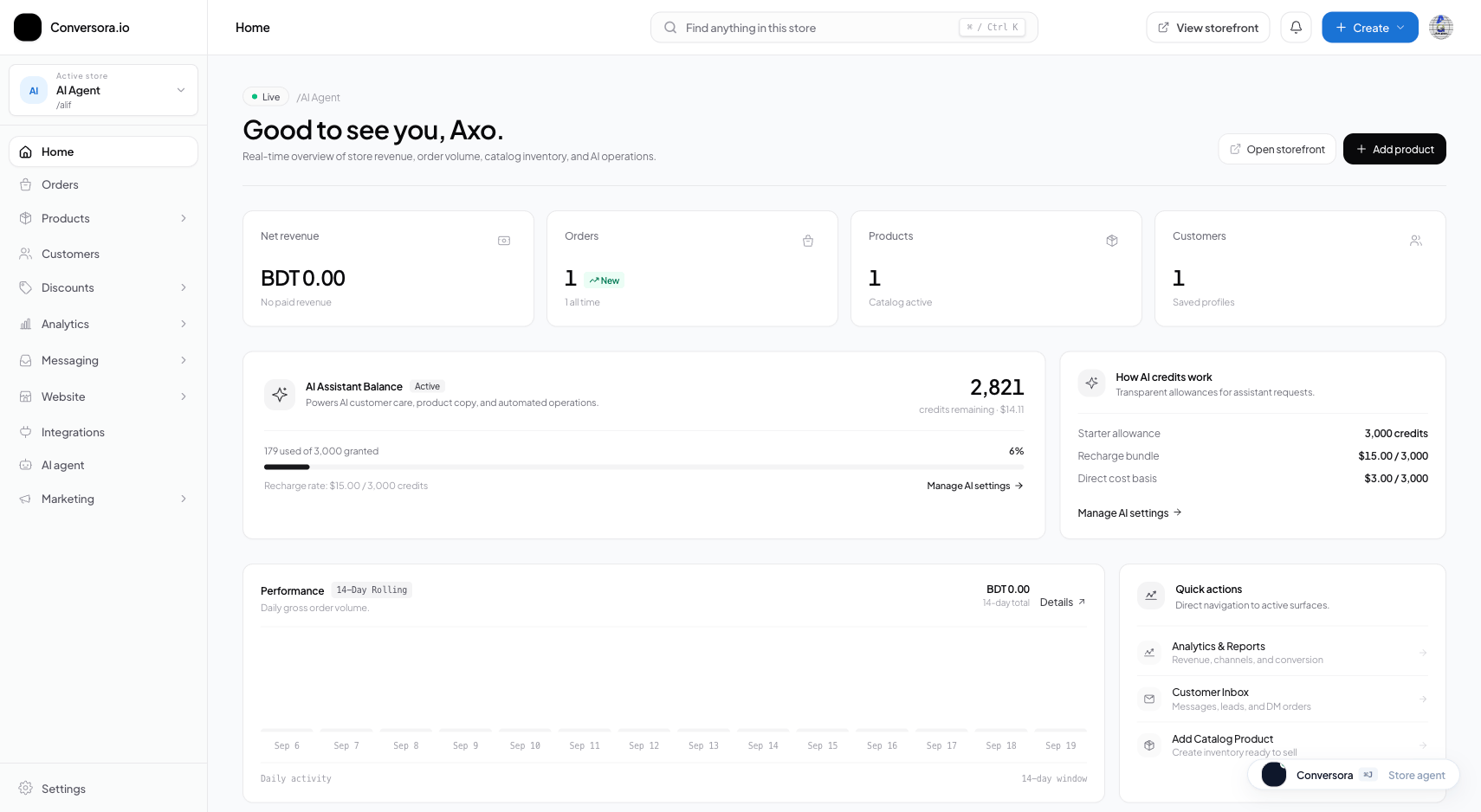
The Store Switcher is located at the top of your admin navigation console. It displays the currently active store brand and provides instant one-click switching to any other store associated with your profile.

When you switch stores, the admin interface seamlessly refreshes its workspace context. All sidebar links, analytics cards, order queues, and inventory tables instantly reflect the selected brand. There is no need to log out, clear cookies, or open secondary private browsing tabs.

1

Locate Store Switcher

Click on the store name badge located in the upper-left corner of the admin header.

Path:Admin Header → Store Switcher Dropdown
2

Select Target Store

From the dropdown menu, select the brand store you wish to manage.

Path:Store Switcher Dropdown → Select Store
3

Workspace Context Updates

The dashboard reloads with the selected store’s metrics, active orders, and catalog.

Path:Admin Console Auto-Refresh

2. Creating Additional Brand Stores

You can expand your business by launching new stores at any time. Whether creating a new fashion label, an electronics outlet, or a dedicated B2B wholesale store, creating an additional store takes less than a minute.

Each newly created store begins with clean default settings, allowing you to configure independent shipping zones, connect separate social channels, and upload distinct branding materials.

1

Open Store Switcher

Click on the Store Switcher dropdown in the top header.

Path:Admin Header → Store Switcher
2

Click 'Create New Store'

Select the '+ Create New Store' option at the bottom of the dropdown list.

Path:Store Switcher → Create New Store
3

Provide New Brand Details

Enter the new store name, choose an available slug, and specify the operating currency.

Path:New Store Modal → Complete Information → Create
Pro Tip

If you manage stores for external clients as an agency, invite the client as an Administrator to their specific store so they can view sales without seeing your other client stores.

Practical Business Scenarios

How leading merchants implement this functionality in daily operations:

Retail Conglomerate Managing Two Brands
Situation: An enterprise runs an upscale designer fashion brand in USD and a budget everyday retail brand in BDT, wanting to maintain distinct accounting and customer lists.
Best practice: Create two separate stores under the same merchant account. The fashion brand operates with Stripe and USD currency, while the everyday brand operates with bKash and BDT, both monitored from the same console.
E-Commerce Agency Servicing Multiple Clients
Situation: A digital marketing agency sets up and oversees storefronts for five independent local retail businesses.
Best practice: Create each client's store within the agency account. Agency managers can switch between client accounts instantly to schedule social posts and audit AI conversations, while inviting individual client owners to their respective stores.

Troubleshooting & Common Issues

Diagnose and resolve frequent failure points quickly:

Problem: A store created recently does not appear in the switcher dropdown
Why this occurs: Your browser session may have an un-refreshed organization membership token.
Resolution: Click your user profile avatar in the upper right, select 'Refresh Account', or log out and log back in to reload your full store organization list.
Problem: AI employee answers with product recommendations from another store
Why this occurs: This should never happen under normal multi-tenant isolation, but can occur if sample knowledge documents containing other product lists were mistakenly uploaded.
Resolution: Open Admin > AI Employee > Knowledge Base and verify that all uploaded documents belong strictly to the active store.

Frequently Asked Questions

Can I transfer ownership of a store to another merchant later?

Yes. Store Owners can invite another user as an Administrator and transfer primary ownership from the Store Settings panel.

Do my different stores share product inventory?

No. Every store maintains completely isolated inventory tables to prevent accidental stock synchronization errors between separate brands.